
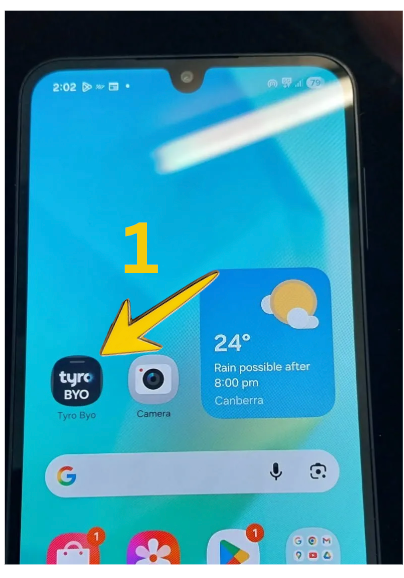
Steps to Set Up the TYRO App
- Go to your App Store eg. Play Store or AppleStore
- Search for "Tyro BYO" -vnot anything else
- Download App.
- NB If not using the CSO Office mobile, you will need approval from the CSO (Contact below) and have arranged a time to get your ID and Pin,
CONTACT:
CSO Treasurer if you are a Rally Volunteer and are having any hassles
Open App - as shown below and proceed as instructed.

To process a Credit or Debit Card Payment on Tyro
1. Click onto the Tyro App Icon on the home screen
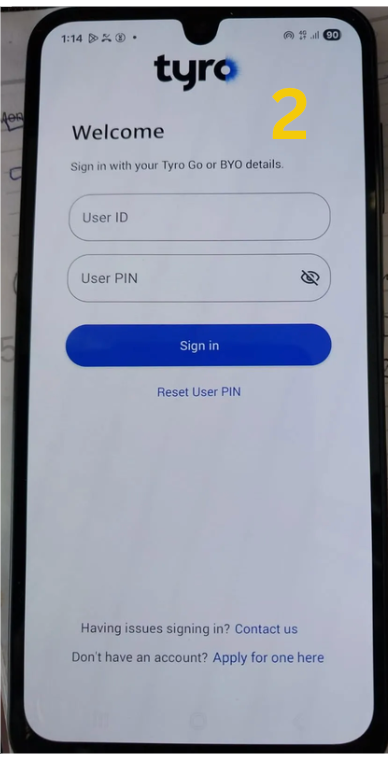
2. Tapping the App will display the Welcome page
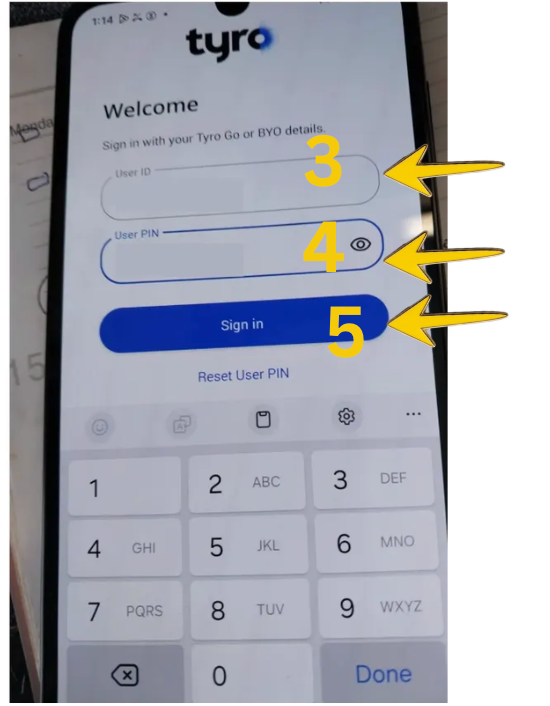
3. Put on our Merchant ID
NB Merchant ID starts with
307324_ NB This number is changing
(To help remember it's two sets of 3 numbers starting with 3, followed by
underscore, then the account number that is yours. Also
on some phone an underscore is on the 2/2 optiona, not on the first screen
- email the Committee if unsure -aawollongong@gmail.com - or call Ro.
NB If you want to change your pin, call Ro 0419 498 768
4. Put in the six digit password
5. Tap "Sign In"
6. Tap on "Payment" top left
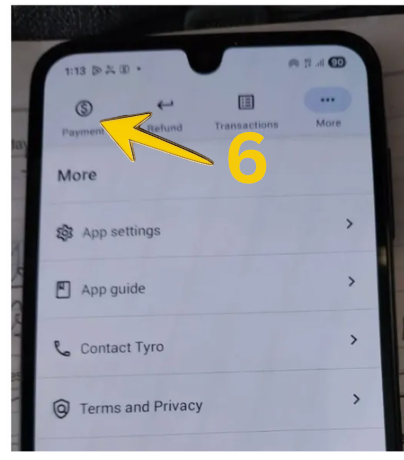
7. Type in the "Payment Description"
i.e. Please record 3 items here
- Tax Invoice Number Axxxx
- LT
(literature)
or DN
(donation)
- "Surname"/ Anon
NB. Rally please put - Last Name then
Tax Invoice Number
Bxx
or
Cxx,
RF
for raffle,
CH for cash,
DN for donation,
RG
for Registration
8. Type in the Amount to pay
9. Click "Proceed"
NOTE : On iPhones - one taps the front not the back of the phone.
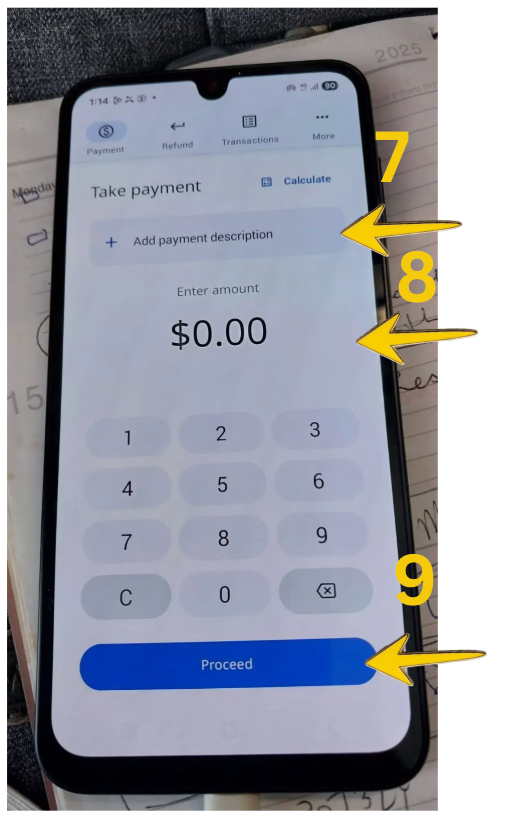
Note: After pressing proceed, this screen will come up
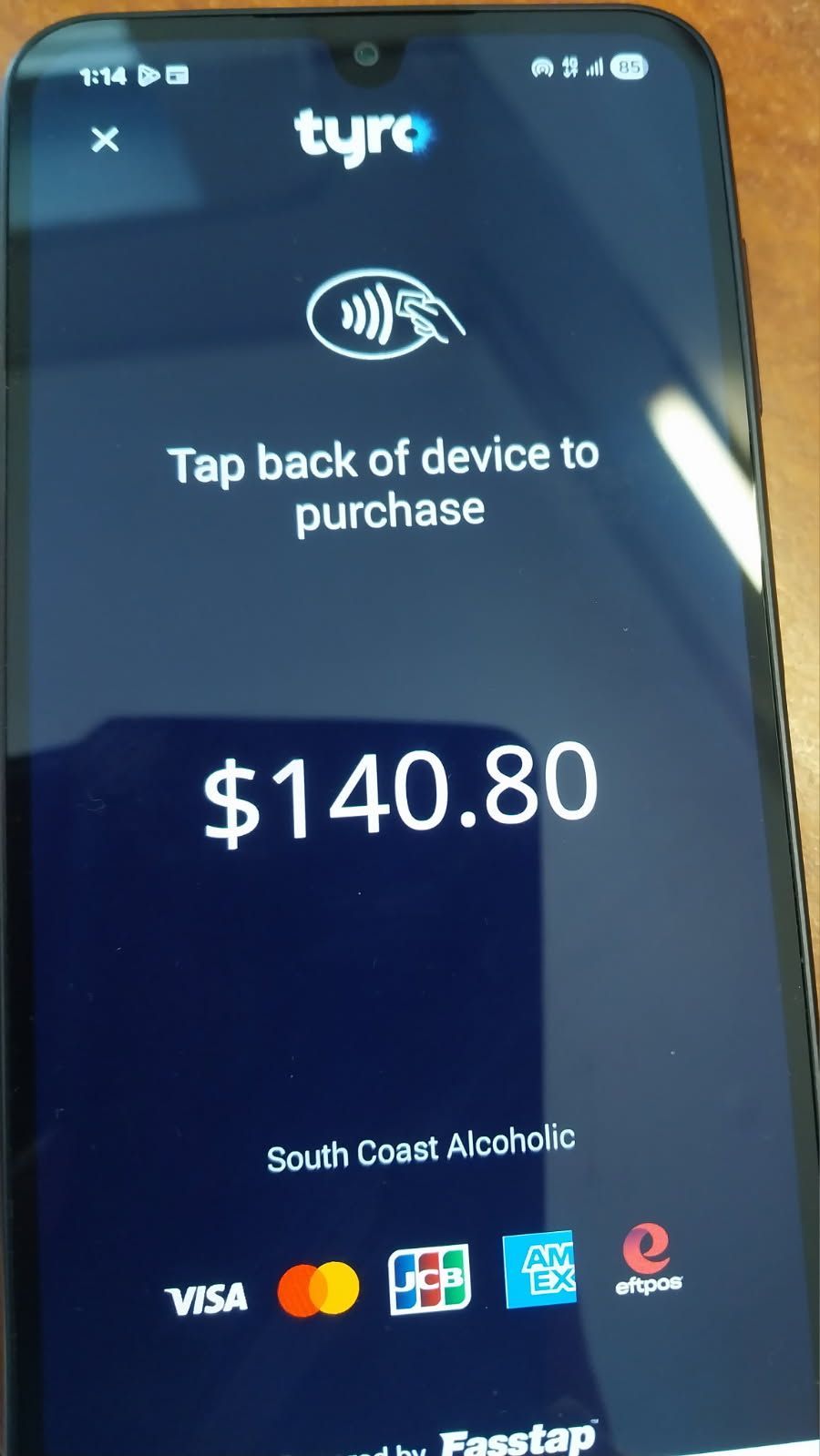
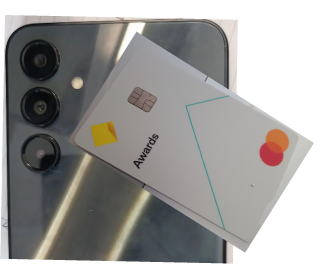
10 . Tap the CARD on the Back of the Phone
NEAR the "White" Dot
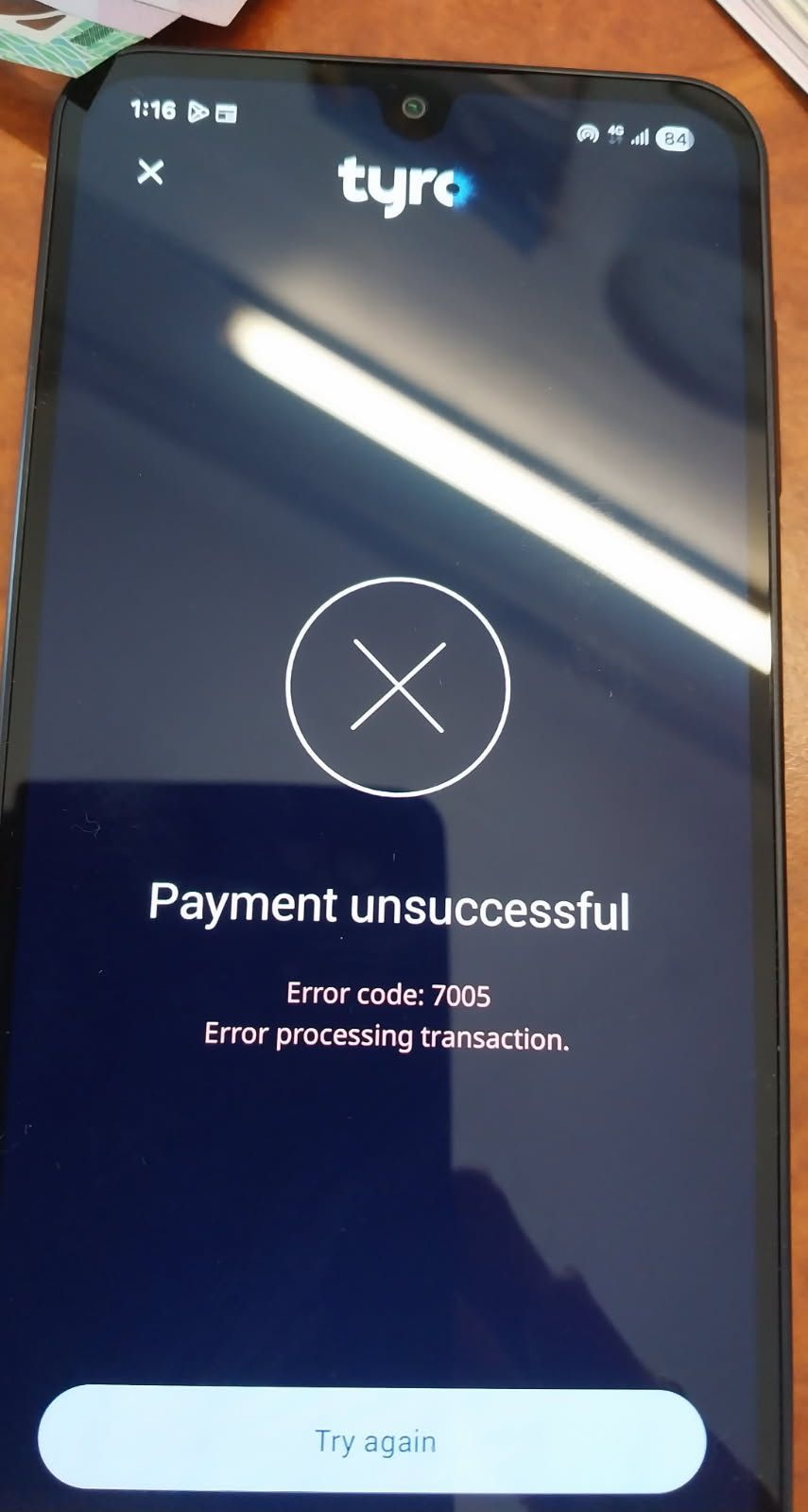
11. NOTE:
Please check the internet has not dropped out.
This can be the problem - not lack of funds - although the purchaser hopefully knows if that could be an issue.
Try again if this happens
12. Click "Send Receipt" if purchaser wants an electronic one
(you will be giving a paper receipt anyway)
13. Or Click NO RECEIPT
14. if Click "Sent Receipt", Put in the email address of the Customer for their receipt.
14. Click SEND
16. Close the App if no more transactions.
See about refunds lower down
RALLY INFORMATION
Role of Literature Volunteers
1. Collate the items wanting to be purchased
2.
For Literature (plus) purchases
-
Write up the Sales invoice – in Book Provided – put person]s name and some contact information such as email if wanting electronic receipt or mobile no and Group name, if buying for the group
3. Add up the Total.
4. Take the payment in cash and give change if needed
5. Or pay by mobile phone Tryo app.*
- Last Name then Tax Invoice Number
Bxx or
Cxx (with
LT
for Literature,
DN for donation)
RF
for raffle,
CH for cash)
6. Write paid by Cash or by DD (direct deposit)*
* Unless person insist on a Tryo Email Receipt, this is sufficient Tax Receipt.
7. Put the items in the paper carry bag
8. Put the top White Invoice/ Receipt in the bag.
* Unless person insist on a Tryo Email Receipt, this is sufficient Tax Receipt.
Note One person could do Items 123, and 7,8 and the other 4,5,and 6.
Role of Raffle Volunteers
1. Ask how many tickets?
2. Write the person’s first name, home group and mobile number clearly on lelfy hand side of stub (side with staples)
3. Give the other side ticket book – the tickets they have purchased to the buyer.
NB. If they do not have cash , they can pay by credit card.
NB: -
RF (for raffle) Name (First and Last)
NB: - If people just want CASH, process as
CH
and Name (First and Last)

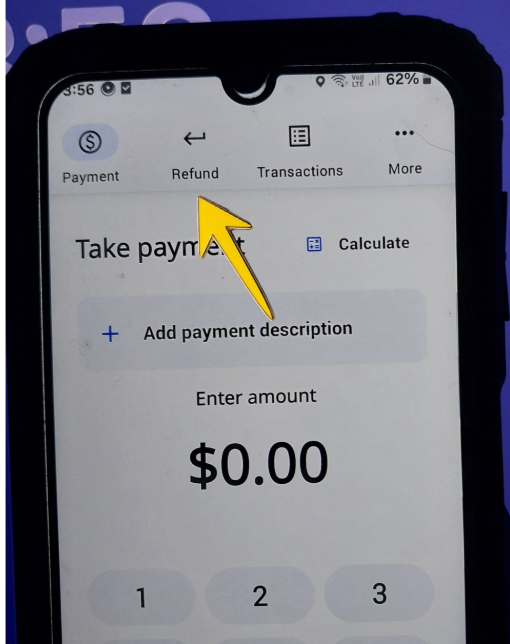
REFUNDS Via TYRO - NOTE ONLY possible with the Credit/ Debit Card Present
- Open the App as shown in steps 1 to 5 above
- Click on "Refund" at the Top
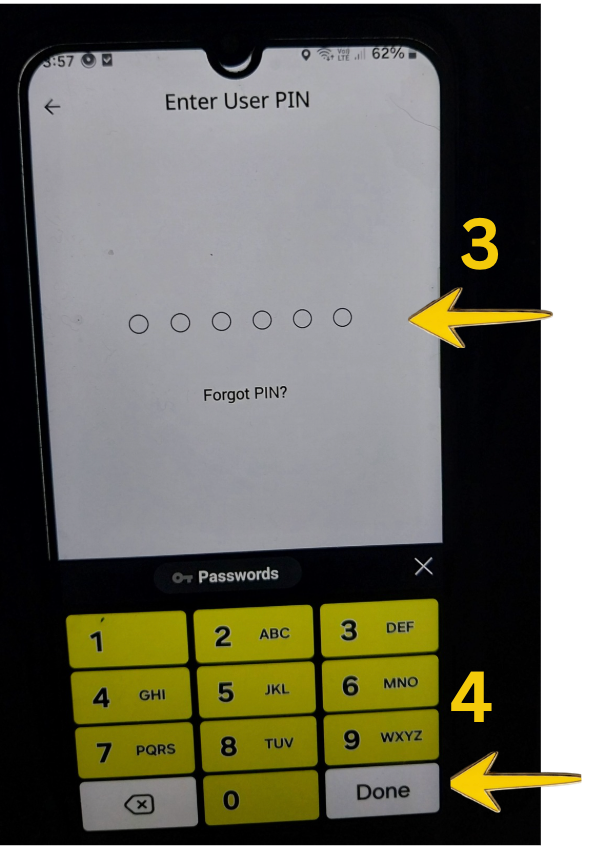
3. Put in the PIN again
4. Press DONE
(Bottom Right)
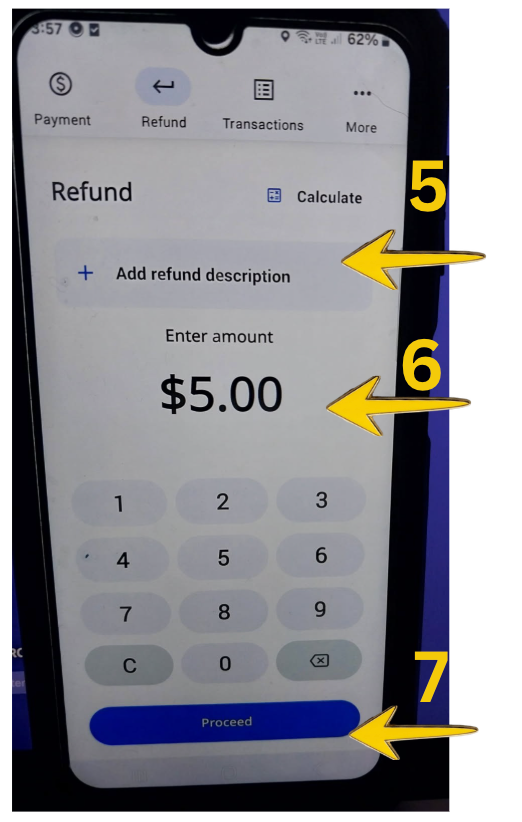
5. Add the Refund Description
For example the Invoice Receipt Number B22 or Customer name on Card
6. Enter the Amount
7. Click 'Proceed"
8. The Screen will display - tap back of phone with the Card
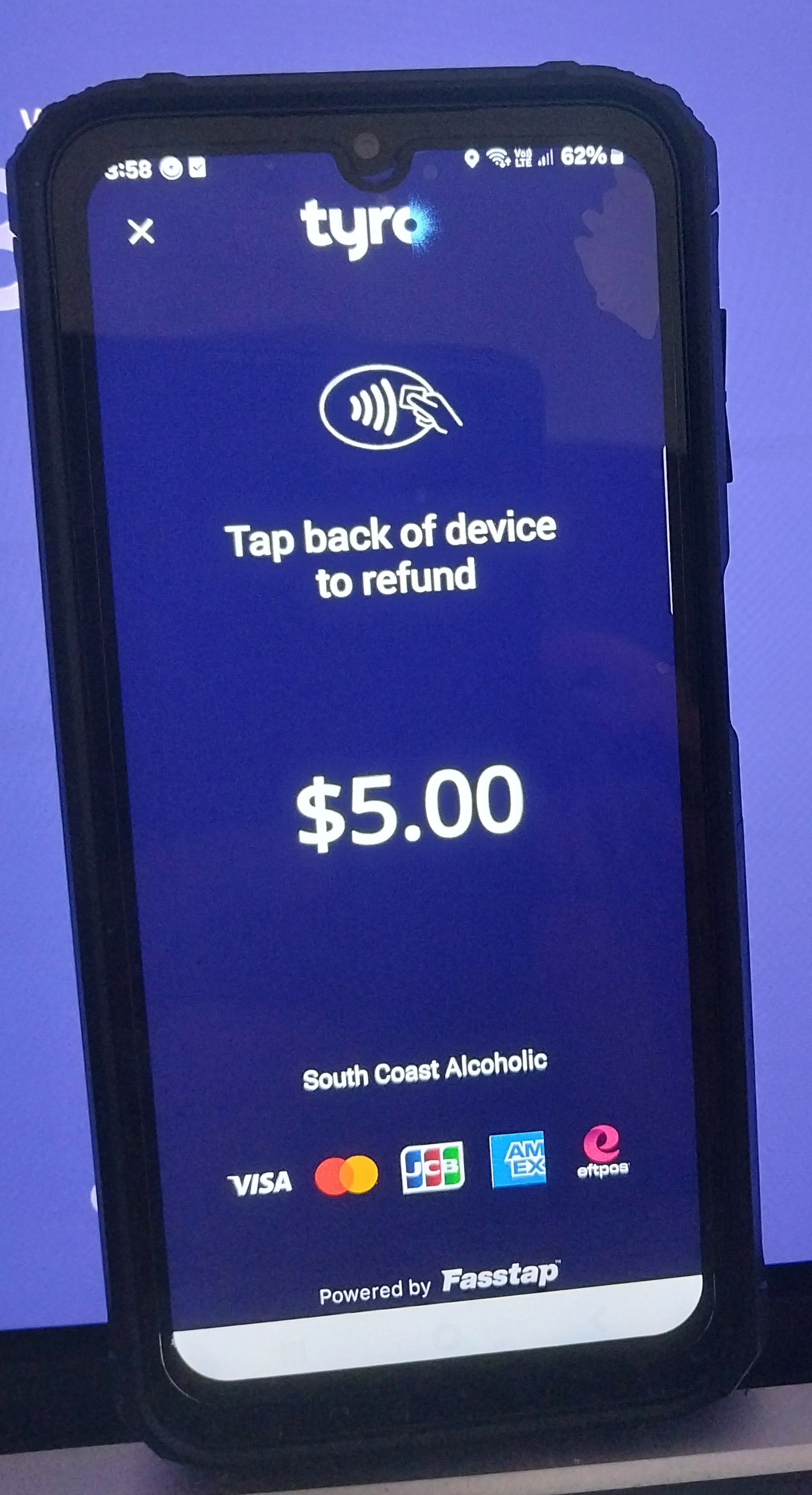
9. TAP Card on top left hand side- near the camera - and HOLD
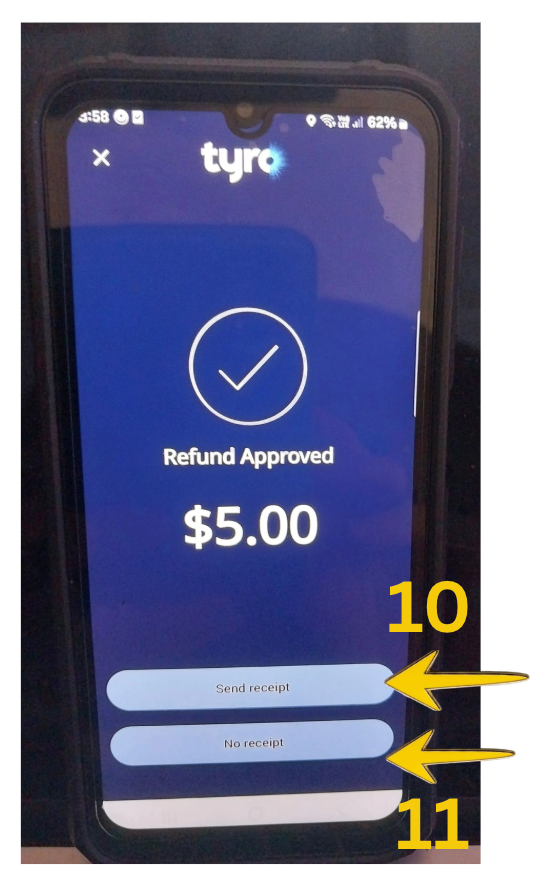
10. Tap to send the Receipt
11. OR Tap No Receipt
12. Put in customer's email il to send a Receipt, if emailing a receipt of the transaction
13. Tap Send
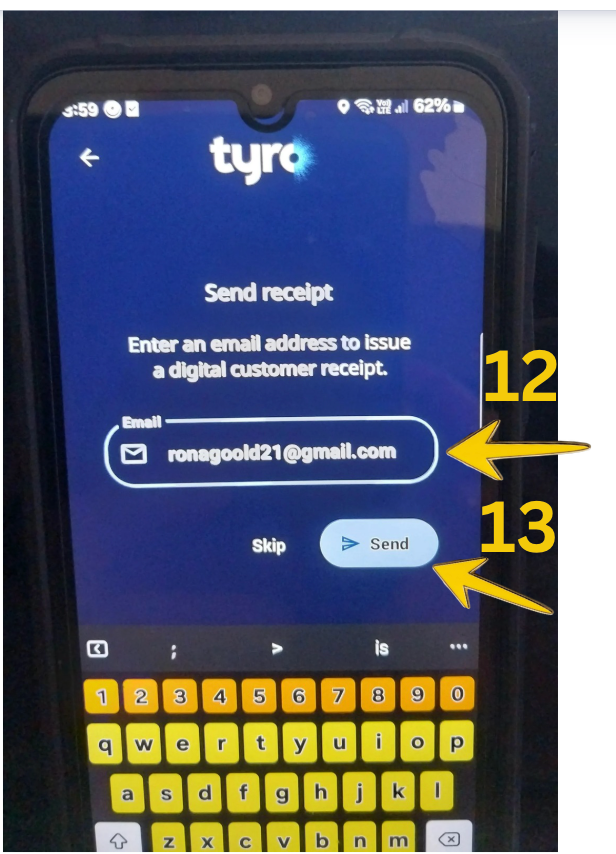
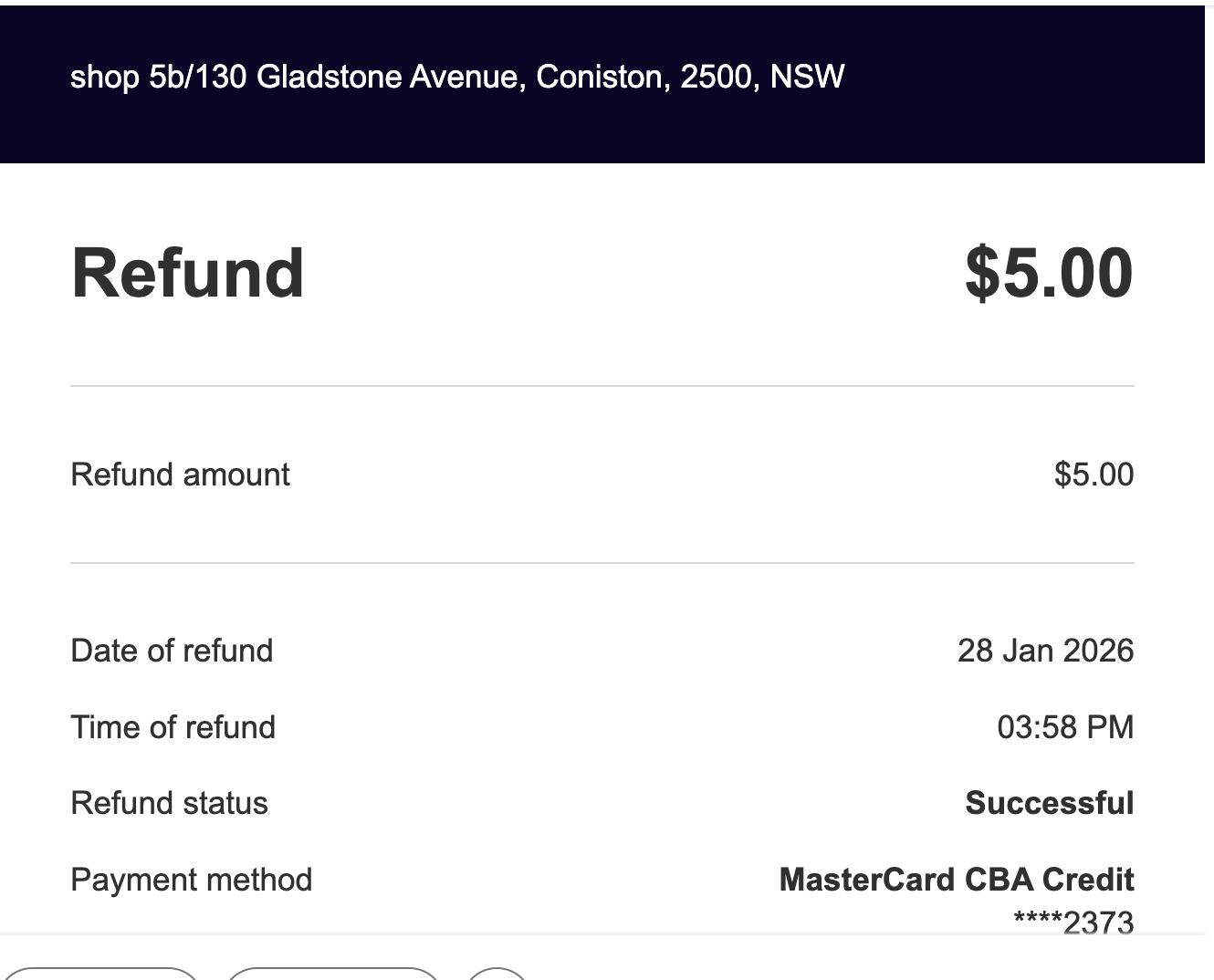
Refund Receipt looks like this when emailed.